Why a Fast Server Can Still Deliver a Slow WordPress Site: Finding the Real Bottleneck
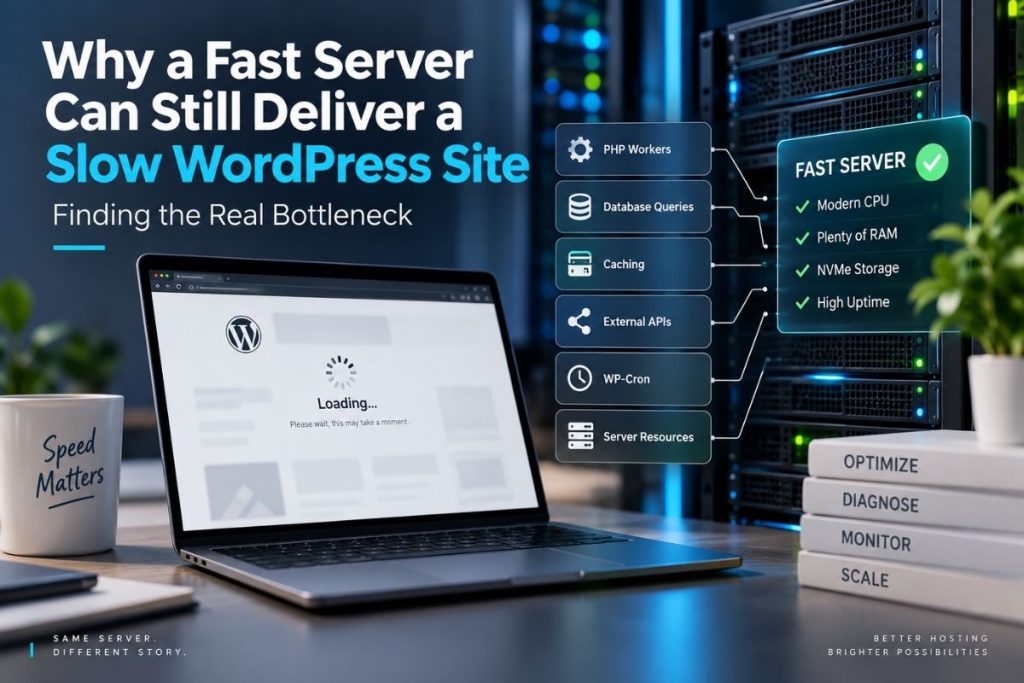
A fast server does not guarantee a fast WordPress site.
You can give WordPress modern CPUs, plenty of RAM and fast storage and still end up with slow page generation, delayed checkout requests or an admin dashboard that feels sluggish.
That is because the server is only one part of the request path. A Slow WordPress Site may actually be waiting on PHP workers, database queries, autoloaded options, external APIs, scheduled tasks or uncached dynamic requests rather than raw hardware.
The useful question is therefore not “Is the server fast?” but “What is the request waiting for?”
A Slow WordPress Site Can Have a Fast Server Underneath It
Consider two requests reaching the same server.
The first request is for a cached blog page. The web server can return a ready-made response with very little PHP or database work.
The second request is a logged-in WooCommerce checkout. WordPress may need to execute PHP, load configuration, query the database, calculate cart data, check inventory, interact with payment services and generate a unique response.
The hardware is identical, but the amount of work behind each request is completely different.
This is why a single headline such as “8-core server” or “NVMe hosting” does not tell you whether a particular WordPress request will be fast.
Start with TTFB, but Do Not Treat It as the Diagnosis
Time to First Byte, or TTFB, can be useful because it shows how long the browser waits before the first part of the server response arrives.
A high TTFB can point toward server-side work, but it does not tell you exactly which component is responsible.
The delay could come from PHP execution, database queries, DNS resolution to an external API, exhausted workers, an uncached request or even application code waiting on another service.
TTFB is therefore better treated as a symptom than a final diagnosis.
For a broader look at the relationship between hosting resources and page speed, see our guide to cPanel Performance Hosting.
PHP Workers Can Become the Queue
Dynamic WordPress requests need PHP execution. In PHP-FPM environments, those requests are handled by worker processes inside pools.
If all available workers are already busy, another request cannot simply use more CPU because the processor is fast. It may have to wait for a worker to become available.
This distinction becomes particularly important on uncached sites, membership platforms and WooCommerce stores where many requests cannot be served as static cached pages.
cPanel’s PHP-FPM documentation describes worker pools as the processes that respond to PHP requests and notes that PHP-FPM is designed to handle higher loads more efficiently than older CGI-based methods.
There is also a less obvious configuration problem: the web server and PHP-FPM need enough capacity to feed each other correctly. cPanel documents an example where PHP-FPM can handle more child processes than Apache can pass requests to, creating a bottleneck even though PHP-FPM itself has additional capacity.
The official cPanel PHP-FPM bottleneck documentation explains this interaction.
This is why “increase PHP workers” should not be the first response to every slow site. The queue may exist somewhere else.
The Database May Be Doing More Work Than You Think
WordPress is database-heavy by design. Posts, settings, users, plugin data and WooCommerce information are stored in MySQL or MariaDB.
One poorly designed plugin can therefore make a fast server feel slow by triggering expensive or repeated queries on every request.
A practical example is a product page that performs several complex queries before PHP can generate the response. Faster storage may reduce query time, but it does not make an inefficient query disappear.
This is also why database optimization should begin with measurement rather than deleting tables or adding indexes at random. The useful questions are which queries are slow, how often they run and whether the application needs to run them on every page request.
Autoloaded Options Can Add Cost to Every Request
The wp_options table contains configuration used by WordPress, themes and plugins. Some of those options are marked for autoloading, which means they are loaded automatically during WordPress initialization.
That is useful for small values needed throughout the site. It becomes less useful when plugins leave large amounts of rarely used configuration set to autoload.
WordPress’s own performance documentation warns that excessive autoloaded data can slow a site and suggests trying to keep the total below approximately 800 KB.
This does not mean 801 KB automatically makes a site slow. It is a diagnostic threshold, not a universal performance law.
The practical recommendation is to review unusually large autoloaded options, identify which plugin or theme owns them and confirm that the data is actually needed on every request before changing anything.
Blindly changing values directly in wp_options can break site functionality, so database changes should always be backed up and understood first.
Persistent Object Caching Helps When Database Work Repeats
WordPress includes an object-cache API that allows frequently used data and expensive query results to be cached instead of rebuilt repeatedly.
By default, that cache does not provide persistent storage across separate requests. A persistent object-cache backend such as Redis can keep useful objects available between requests.
WordPress specifically notes that persistent object caching can reduce repeated database trips and improve response times such as TTFB, particularly when traffic increases.
The official WordPress performance documentation discusses persistent object caching and autoloaded options in more detail.
Object caching is not automatically useful for every site. A small, heavily page-cached brochure site may see little difference. A dynamic application repeatedly requesting the same database objects can benefit much more.
Page Caching and Object Caching Solve Different Problems
These two forms of caching are often confused.
Page caching can avoid running most of WordPress entirely by serving an already-generated page response.
Object caching still allows WordPress and PHP to run, but reduces some of the repeated database work inside that request.
This difference matters on WooCommerce and membership sites. Public product or content pages may be page-cached, while cart, checkout, account and logged-in requests usually need dynamic processing.
A site can therefore appear extremely fast to an anonymous visitor while the admin area or checkout remains slow.
That is not necessarily a contradiction. They are different request paths.
External APIs Can Make Your Server Wait
Not every performance bottleneck lives on your server.
A plugin may call a payment provider, CRM, shipping service, licensing server or another remote API while building a page or completing an action.
If that remote service takes two seconds to answer, adding another CPU core to the WordPress server does not remove the two-second wait.
This can be particularly confusing because server monitoring may show low CPU and memory usage while users still experience slow responses.
When performance problems affect one feature rather than the entire site, external HTTP requests are worth checking alongside PHP and database activity.
WP-Cron Can Become Visible Under the Wrong Workload
WordPress uses wp-cron.php to check whether scheduled tasks need to run. By default, those checks are triggered by website visits rather than by a traditional operating-system cron scheduler.
WordPress describes the normal checks as small and fast, so replacing WP-Cron is not automatically necessary.
However, scheduled jobs themselves can still be expensive. Backups, email queues, imports, feed processing or cleanup tasks can create noticeable load when they overlap with busy periods.
On sites where scheduled work becomes significant, moving the trigger to a real server cron can make scheduling more predictable. The important step is still to identify which tasks are expensive rather than assuming wp-cron.php itself is always the problem.
A Faster Hosting Plan Is Sometimes the Right Fix
Not every slow site is badly optimized.
If an application is already efficient but regularly exhausts CPU, memory, PHP workers or database capacity under legitimate traffic, it may genuinely need more resources.
The mistake is upgrading first and diagnosing later.
If a slow database query takes one second on the current server and 700 milliseconds after an upgrade, the new server is faster — but the application still contains a slow query.
For consistently demanding workloads, moving to a larger environment can make sense. Our guide to premium hosting for high-performance websites discusses that wider decision.
A Practical Order for Diagnosing a Slow WordPress Site
When a site is slow, changing five things at once makes it harder to know which change actually helped.
A more useful sequence is:
- Confirm whether the problem affects cached pages, dynamic requests, the admin area or everything.
- Measure server response time and check whether PHP workers or resource limits are being exhausted.
- Review slow database queries and unusually large autoloaded options.
- Check external API calls and scheduled jobs.
- Verify that page caching and object caching are being used where they actually fit the workload.
- Only then decide whether the application needs optimization, configuration changes or more server resources.
This approach turns “WordPress is slow” into a narrower technical problem that can actually be investigated.
Fast Hardware Helps Most When the Software Can Use It
A faster CPU, more memory and better storage absolutely matter. They increase the capacity available to WordPress.
But hardware cannot remove every form of waiting.
A request blocked behind PHP workers, an inefficient database query, an oversized autoloaded options set or a slow external API can still feel slow on a powerful server.
The best performance work therefore starts by locating the bottleneck rather than assuming where it is.
For a Slow WordPress Site, the most useful upgrade is often not immediately a faster server. It is a clear diagnosis of what the request is waiting for — and then applying the right fix to that specific layer.
Reliable Hosting for a Seamless Online Experience
24/7 Support & High Performance – Host with Confidence

Boost Your Online Presence with Host Home: Unmatched Hosting Power, Anytime, Anywhere.
Contact us
© 2026 hosthome.cloud. All Rights Reserved.