Zero-Downtime WordPress Migration: DNS, TTL, Database Sync and SSL Explained
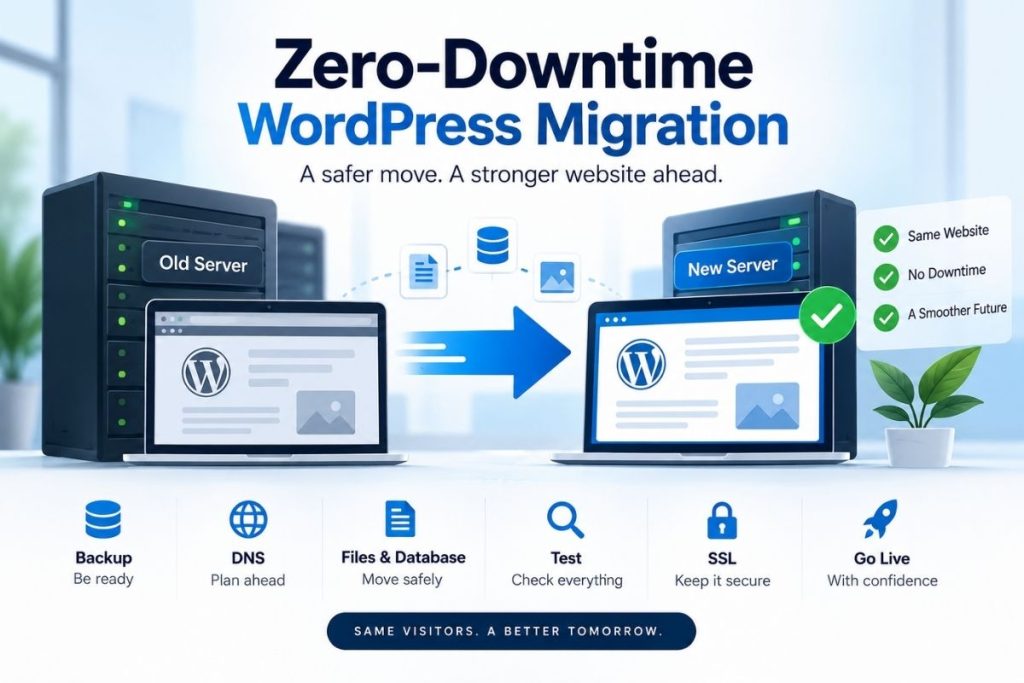
Moving WordPress to a new server is easy when the site is not changing. The difficult part is moving a site that is still receiving orders, form submissions, user registrations or content updates.
That is where a Zero-Downtime WordPress Migration becomes less about copying files and more about controlling the cutover.
A typical WordPress site has several moving parts: files, a database, DNS, SSL, scheduled tasks and sometimes email or third-party services. During a migration, those pieces do not necessarily switch servers at exactly the same moment.
For a brochure site, a short maintenance window may be perfectly acceptable. For an active WooCommerce store, the bigger risk is often not downtime at all. It is allowing a customer to complete a transaction on the old server after the database has already been copied to the new one.
A good migration plan therefore focuses on data consistency first and visible downtime second.
Zero-Downtime WordPress Migration Starts Before the Transfer
DNS is one of the first things to plan because DNS changes are cached.
The TTL, or Time to Live, tells recursive DNS resolvers how long a record may be cached before it should be requested again. Lowering the TTL before a planned migration can help reduce the time that old information remains cached.
The important phrase is before the migration.
If an A record previously had a long TTL, reducing it five minutes before changing the server IP does not invalidate copies that were already cached under the previous value. For an important migration, lower the TTL sufficiently in advance for the old cache period to expire.
It still does not guarantee that every visitor will move to the new server simultaneously, which is why the source server should normally remain available during the transition.
For a deeper explanation of the DNS layer, see what DNS is and why a website can break without it.
The Database Is Usually the Real Cutover Problem
WordPress is not just a collection of files.
Plugins, themes and media uploads exist in the filesystem, while posts, settings, users and much of the site’s live application data are stored in the database.
Consider a WooCommerce store copied from Server A to Server B at 10:00 AM. The transfer finishes successfully, but DNS is not changed until 10:30 AM.
If customers place orders on Server A during those 30 minutes, those orders are not automatically present in the database copy created at 10:00 AM.
That is a migration failure even if nobody saw an error page.
For an active site, the migration therefore needs a strategy for the final database state. Depending on the site, that may mean a final database synchronization immediately before cutover or a short maintenance/read-only period that prevents new writes while the final data is moved.
This is one situation where promising literal “zero downtime” can be less responsible than accepting a very short controlled interruption. Protecting an order or customer record matters more than claiming that the website was continuously writable.
Take a Backup — but Keep the Old Server Too
Before changing the live environment, create a complete backup of the WordPress files and database. Also note anything outside the standard WordPress installation that may need to be recreated, including cron jobs, redirects, custom DNS records or server-specific configuration.
A backup is useful only if it can actually be restored. For an important site, verify that the archive is readable and that the database export is valid before starting the cutover.
The source server itself is also a useful temporary safety net. Do not immediately destroy the old account after the new server begins receiving traffic.
If the destination develops a serious problem, retaining the source environment gives the administrator more recovery options than relying on an untested archive alone.
Our guide to website backup responsibilities looks at this issue in more detail.
Test the New Server Without Sending Customers There
A migration should be tested before public DNS points at the destination.
One useful technique is a local hosts-file override. The administrator maps the production domain to the destination server’s IP address on a test computer. Requests from that computer reach the new server while normal visitors continue using public DNS.
This is much more useful than testing only a temporary URL because WordPress, HTTPS configuration, redirects and application logic can depend on the real hostname.
Do not stop when the homepage appears.
- Log in to WordPress admin.
- Open several database-driven pages.
- Submit a contact or enquiry form.
- Test WooCommerce cart and checkout if applicable.
- Check images and uploaded files.
- Test important redirects.
- Confirm scheduled tasks and integrations.
- Look for PHP errors and missing extensions.
A site can render a perfect homepage while checkout, email delivery or a background process is broken.
Be Careful When the Domain or URL Changes
If the website keeps exactly the same domain and URL structure, database URL replacement may not be required.
If the hostname or path changes, the situation is different. WordPress plugins and themes can store serialized PHP data in the database. Serialized values can include the length of a stored string, so a careless SQL find-and-replace may damage the data when the replacement URL has a different length.
WordPress specifically warns about this during migrations.
WP-CLI provides a safer approach with its search-replace command, which understands serialized data.
A useful first step is a dry run:
wp search-replace 'https://old.example' 'https://new.example' --dry-runThe --dry-run option reports what would be changed without writing those changes to the database. Once the output has been reviewed, the real replacement can be performed.
Database modifications should still be backed up first. A tool being serialization-aware does not make an incorrect replacement harmless.
SSL Needs to Be Verified, Not Assumed
HTTPS introduces another cutover dependency.
An automated certificate system can make certificate installation straightforward, but the destination server still needs to satisfy the certificate authority’s validation requirements.
If DNS is not pointing where expected, validation can fail. A migration can therefore be successful at the WordPress level while visitors still encounter an HTTPS problem.
After cutover, test the live domain over HTTPS and check important hostnames rather than assuming certificate automation completed successfully.
Where cPanel Live Transfer Helps — and Where It Does Not
When both the source and destination use cPanel & WHM, WHM’s Transfer Tool can move accounts, databases and supported configuration between servers.
Its Live Transfer feature goes further. cPanel can update the transferred account’s A record and nameserver information and proxy certain service requests toward the destination, helping reduce disruption during the transition.
There are boundaries worth understanding.
Live Transfer is specifically for transfers between cPanel & WHM servers. cPanel also warns that DNS must be updated before the old account is removed. If DNS-zone updating is disabled during the transfer, the destination may not receive the required DNS zone and mail-routing configuration automatically.
Active sessions are another small edge case. cPanel notes that users may need to log in again to services such as WordPress, phpMyAdmin and Webmail after the transfer.
There are also server-specific settings that deserve manual review. For example, cPanel documents that MultiPHP users’ PHP-FPM settings are not simply restored as active configuration during the transfer; the transferred configuration may require manual restoration.
In other words, Live Transfer can reduce downtime, but it should not be treated as a substitute for checking the destination.
For customers who prefer the provider to handle this work, managed cPanel hosting can remove much of the server-level migration work from the website owner’s side.
The Final Cutover Should Be Boring
If the preparation has been done properly, the final switch should contain very few surprises.
Complete the final database synchronization or controlled maintenance period, make the DNS change, and then watch the functions that matter most: HTTPS, forms, logins, checkout, application errors and new database activity.
Keep the source server intact while DNS caches expire and while the new environment is being verified.
Only after traffic and data are consistently reaching the destination should the old environment be retired.
Zero Downtime Is Really About Controlling Risk
A Zero-Downtime WordPress Migration is not successful merely because the homepage remained online throughout the transfer.
A better measure is whether the migration protected new data, moved traffic predictably, preserved HTTPS, kept a usable rollback path and left the application functioning correctly on the destination.
For a quiet website, that process can be almost invisible. For an active store or membership platform, a short controlled maintenance period may sometimes be the safer engineering decision.
The objective is not to make an unrealistic promise that no interruption can ever occur. It is to understand where interruption or data loss can happen and design the migration so those risks are controlled before DNS is changed.
Reliable Hosting for a Seamless Online Experience
24/7 Support & High Performance – Host with Confidence

Boost Your Online Presence with Host Home: Unmatched Hosting Power, Anytime, Anywhere.
Contact us
© 2026 hosthome.cloud. All Rights Reserved.