cPanel/WHM Server Hardening: 7 Essential Security Steps for VPS Administrators
- Home
- Web Hosting Explained
- cPanel/WHM Server Hardening: 7 Essential Security Steps for VPS Administrators
cPanel/WHM Server Hardening: 7 Practical Steps to Reduce Security Risks
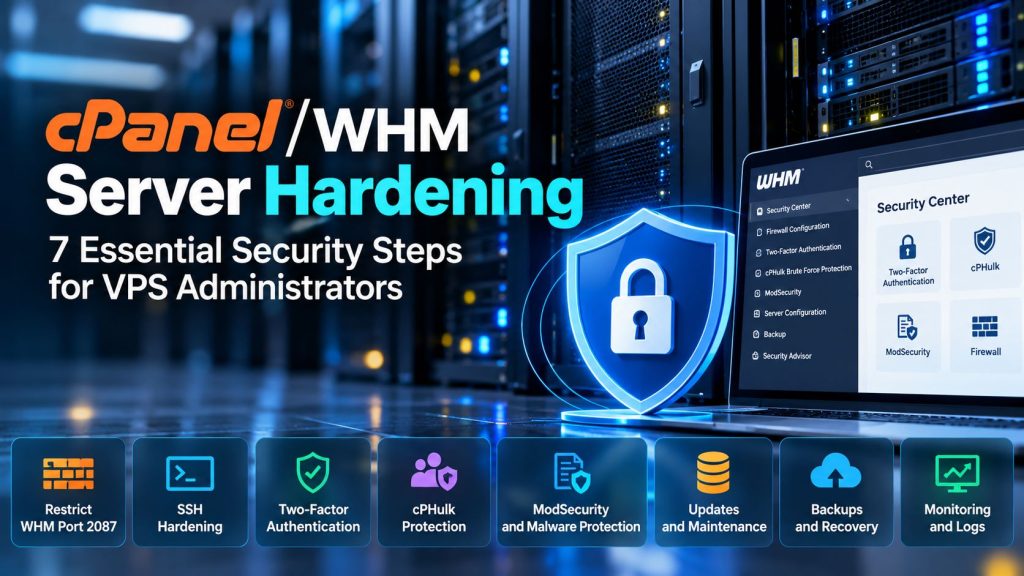
cPanel Server Hardening begins with a simple question: which services can reach your server, and who is allowed to control them?
A cPanel/WHM server may host several websites while exposing powerful administrative interfaces. An attacker who gains privileged access could modify accounts, access sensitive data, or disrupt hosted services.
Effective hardening reduces unnecessary exposure, strengthens authentication, and helps administrators detect suspicious activity. These seven steps focus on practical controls rather than security features enabled simply to improve a checklist score.
1. Restrict WHM Port 2087
WHM commonly uses TCP port 2087 for encrypted administrative access. Encryption protects the connection, but it does not prevent unauthorized users from attempting to reach the login interface.
Where possible, allow WHM access only from trusted administrator IP addresses or through a VPN. Apply restrictions at the firewall or network level rather than relying solely on login protection.
For example, a server using firewalld might permit a trusted administrator address with a rule resembling:
firewall-cmd --permanent \
  --add-rich-rule='rule family="ipv4" source address="203.0.113.10/32" port protocol="tcp" port="2087" accept'
The address above is illustrative. This rule only adds an allowance; it does not automatically block other sources. A complete policy must explicitly restrict unwanted access.
Important: Confirm emergency console access, existing firewall rules, and trusted administrator connectivity before applying restrictions. Never close your only working management session until the new connection has been tested.
Review the official cPanel firewall guidance before changing service access.
2. Strengthen SSH Authentication
SSH access should be limited to administrators who genuinely need it. Key-based authentication is preferable to relying on reusable passwords alone.
Administrators can inspect effective SSH settings using:
sshd -T | grep -E \
'^(permitrootlogin|passwordauthentication|pubkeyauthentication) '
Review whether password authentication is necessary, whether direct root login should be disabled, and whether administrative users have appropriate permissions.
Before changing authentication settings, verify SSH key access in a separate session. Keep an alternative recovery method available.
Moving SSH to a nonstandard port may reduce automated scanning noise, but it does not replace strong authentication or access restrictions.
3. Combine Two-Factor Authentication With cPHulk
Two-factor authentication adds a second verification step when signing in. In WHM, administrators can manage it through Security Center > Two-Factor Authentication.
Enable 2FA for privileged accounts and ensure recovery procedures are documented.
cPHulk provides another layer by tracking failed authentication attempts against supported services. It can temporarily block suspicious login activity according to configured thresholds.
However, overly aggressive thresholds may block legitimate administrators, especially when multiple users connect through a shared office IP.
Review protection settings, trusted addresses, and authentication logs regularly. Neither 2FA nor cPHulk makes publicly exposed management services risk-free.
4. Configure ModSecurity Without Breaking Websites
ModSecurity is a web application firewall that examines HTTP traffic using configured security rules.
It can help detect malicious request patterns, including certain injection attempts and suspicious application requests. Its effectiveness depends on the ruleset, configuration, and ongoing maintenance.
In WHM, administrators can review ModSecurity settings and rule activity through the available security interfaces.
False positives deserve careful investigation. For example, a legitimate WordPress form containing technical text might trigger a restrictive rule.
Instead of disabling ModSecurity entirely, identify the affected rule, inspect the request, and apply the narrowest justified exception.
Malware scanning complements this protection by examining files for suspicious content. Neither control replaces application patching or secure account permissions.
5. Reduce Unnecessary Services and Account Privileges
Every exposed service creates another component that requires configuration, maintenance, and security updates.
Administrators can inspect listening TCP and UDP services with:
ss -tulpenReview which ports are publicly reachable and whether each service is required. Do not disable DNS, mail, or other cPanel-managed services without understanding their dependencies.
Within WHM, review administrator access, reseller privileges, unused accounts, and features granted to individual users.
Least privilege limits the consequences of compromised credentials. A reseller or website account should not receive administrative capabilities it does not need.
Our guide to WordPress server security covers additional application-level protections.
6. Verify Updates Instead of Assuming They Succeeded
Security advisories sometimes require urgent action. A server with disabled or failing updates can remain exposed even after a vendor releases a fix.
Review cPanel’s update configuration, maintain a supported operating system, and monitor security notices affecting installed components.
Administrators can inspect the installed cPanel version using:
cat /usr/local/cpanel/versionThis identifies the installed version but does not establish whether every security issue has been addressed. Compare it with the vendor’s current advisories and supported release information.
After maintenance, verify update completion and confirm that essential services still function.
Remove obsolete plugins and applications, but coordinate changes that could affect customer websites.
7. Review Security Logs and Prepare an Incident Response
Security monitoring should focus on actionable signals: repeated failed logins, unexpected privileged access, unfamiliar processes, suspicious file changes, and unusual network connections.
Depending on the operating system and authentication configuration, administrators may inspect SSH-related events through:
journalctl -u sshd --since "24 hours ago"The service name and available logs vary between systems.
When suspicious activity appears, preserve relevant evidence, restrict compromised access, investigate the cause, and determine whether credentials or hosted applications were affected.
Recovery may require restoring verified clean data from independent backups. Our guide to website backup responsibilities explains why recovery arrangements should be established before an incident.
Example Scenario: Repeated WHM Login Attempts
Consider a business VPS where WHM port 2087 is accessible from the public internet.
Automated login attempts begin appearing in authentication logs. The administrator confirms that legitimate staff connect through a company VPN, then restricts WHM access to that trusted network.
The team also verifies 2FA, reviews cPHulk settings, and checks whether any unauthorized login succeeded.
After applying the firewall changes, the administrator tests access through the VPN and confirms that unrelated website and mail services remain available.
This illustrative scenario demonstrates an important principle: reducing exposure is often more effective than relying on login protection alone.
Make cPanel Security an Ongoing Practice
Effective cPanel Server Hardening combines restricted management access, strong authentication, carefully maintained security rules, least-privilege accounts, verified updates, and meaningful monitoring.
Apply changes in a controlled sequence, document important settings, and test access after each significant adjustment.
Businesses evaluating HostHome Cloud VPS/VDS hosting options should clarify which security tasks are included and which remain the customer’s responsibility.
A secure server is not one with the most features enabled. It is one with a well-understood attack surface, appropriate controls, and administrators prepared to respond when something changes.
Written by Nadee Kumari
Technical review by HostHome Team
Reliable Hosting for a Seamless Online Experience
24/7 Support & High Performance – Host with Confidence

Boost Your Online Presence with Host Home: Unmatched Hosting Power, Anytime, Anywhere.
Contact us
© 2026 hosthome.cloud. All Rights Reserved.